Mouseflow is best for website-focused teams that want powerful heatmapping and funnel analytics based on individual user sessions. Smartlook is better for product, SaaS, and mobile-powered teams that need event-based analytics and user-level tracking on both websites and mobile apps.
Mouseflow vs. Smartlook: A Quick Snapshot
On-the-go? Here’s a quick overview of how the two tools stack up.
| Feature | Mouseflow | Smartlook |
|---|---|---|
| Session Recordings | ✅ In-session behavior tracking (clicks, scrolls, rage/dead clicks) ⚠️Sessions are not connected across more than one visit | ✅ Recordings are tied to users and events ✅ Tracks behavior across multiple sessions and platforms |
| Heatmaps | ✅ 7 heatmap types (click, scroll, movement, attention, friction, interaction, geo) ✅ Strong filtering ⚠️ Only works on websites, not mobile apps | ⚠️ 3 heatmaps (click, movement, scroll) ✅ Works on web and mobile |
| Funnels | ✅ Built-in funnels with step drop-offs ✅ Link funnel steps to recordings | ✅ Event-based funnels ✅ Shows drop-offs and time between steps |
| Segmentation | ✅ Session-level filters (device, source, location, time) ⚠️ No user-level analysis | ✅ User-, event-, and property-based segmentation ⚠️ More setup required |
| Integrations | ✅ Website and CMS-focused integrations ✅ Quick and easy setup | ✅ Analytics-focused integrations ✅ Designed for sharing data across multiple apps |
Now let’s dig into the more detailed comparison of each core feature.
Feature Breakdown: Mouseflow vs. Smartlook
1. Session Recordings
Mouseflow
Mouseflow is great at recording what users do in one, single website session. It tracks clicks, scrolls, mouse movements, rage clicks, dead clicks, and the overall path used to navigate the site.
The recordings are easy to access, and they work best for spotting problems like:
- Confusing or misleading website layouts
- Elements that look like links but aren’t—always a big user experience (UX) frustration
- Content that users skip over or that causes them to hesitate—or even exit the site altogether
With Mouseflow, each visit is treated independently. If a user leaves the site and comes back later, Mouseflow does not connect those sessions.
This is a plus for some and a minus for others. On the one hand, single-session analysis helps brands zoom right in on the users that affect users in the moment. On the other, it makes it harder to understand longer customer journeys that traverse multiple site visits.
Not everyone visits sites just once—many of us visit repeatedly, adding products to carts, exiting the site, and then coming back again after payday, for example.
If you want a tool that analyzes behavior across longer—or entire—journeys, Smartlook might be the better option.
Smartlook
Like Mouseflow, Smartlook offers session recordings. But unlike Mouseflow, these recordings are tied to users and events, not just individual sessions.
This means that users can be tracked across multiple visits, sessions, and platforms (like a store’s mobile app and its website)—as long as the appropriate user identification and event tracking settings are configured.
This makes it easy to analyze recordings within the context of a user’s overall history with the brand. For instance, let’s say you notice a user leaves their cart empty after reading a specific paragraph of content on your page.
You can use Smartlook to zoom out and see when the user signed up, what circumstances typically surround their add-to-cart behavior, and how often they historically come back after a purchase.
2. Heatmaps
Mouseflow
Mouseflow is kinda known for its heatmaps. They’re a flagship product, if you will, and Mouseflow offers deeper heatmapping capabilities than Smartlook.
With Mouseflow, you get seven heatmap types:
- Click heatmaps show where users click on a page.
- Scroll heatmaps to see how far down users scroll and where they stop engaging with your site or app.
- Movement heatmaps that track mouse movements, which help you identify users’ reading patterns.
- Attention heatmaps that measure how much time users spend viewing each part of a page.
- Friction heatmaps that show you all the places where users get stuck or start rage-clicking due to errors.
- Interaction heatmaps that give you a visual of users’ interactions with elements like menus, sliders, and tabs.
- Geo heatmaps that show you where users are located.
Even better, Mouseflow’s heatmaps are easy to set up and use. The filtering is especially strong—you can filter your heatmaps by the type of device used, the traffic source (Google vs. social media vs. ads, for example), or campaign (which ads or campaigns sent the users in).
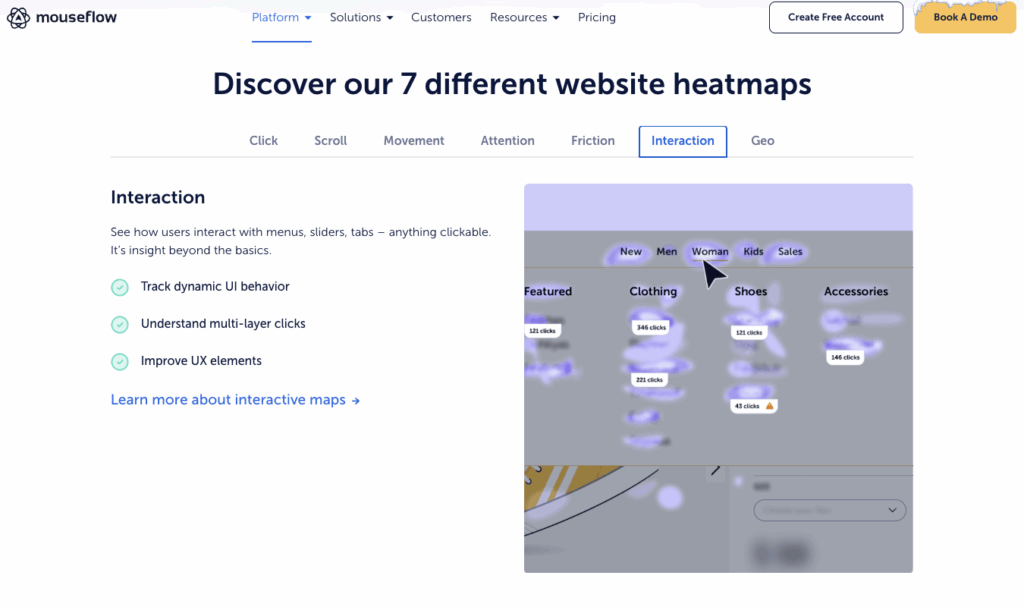
Smartlook’s handful of heatmaps—three, to be exact—pale in comparison to Mouseflow’s robust offerings.
Smartlook
So, compared with Mouseflow, Smartlook is fairly limited when it comes to heatmaps. But you do get these heatmaps on both websites and mobile apps—which is not true of Mouseflow, a tool limited to websites.
You get three core heatmaps with Smartlook: click, mouse movement, and scroll maps. These heatmaps are built from aggregated behavior across many user sessions (the same is true of Mouseflow’s heatmaps).
They update as fresh data comes in, and you can filter the maps by device type used, date, visitor segments, and traffic source.
Overall, Smartlook’s heatmaps are fine if you just want them as a supplement to Smartlook’s core tool—the session recordings—or if you need heatmaps for both web and mobile apps.
If you rely more heavily on session replay and don’t have a mobile app to track, Mouseflow’s heatmaps are more valuable.
3. Funnels and Conversion Analysis
Mouseflow
Like many conversion analytics tools, Mouseflow includes a built-in conversion funnel tracking feature. This lets you identify and study a series of steps users take toward a goal, like making a purchase or signing up for a demo.
You can create, customize, and compare multiple conversion funnels within your Mouseflow funnel reports dashboard. You’ll see how many users make it through each funnel step and where they drop off—super helpful for figuring out which funnel step is the weak link.
Mouseflow’s funnel analytics are also integrated with Mouseflow’s other CRO tools, like session recordings. This means you can connect session recordings to specific steps in your funnel. Heatmaps, form analytics, and customer journey mapping tools give helpful context, too.
If there’s a snag in the funnel, it’s easy to study the recordings connected to that snag. You can see exactly what is causing people to abandon ship.
Smartlook
Like its session recording tool, Smartlook’s funnels are event-based. They’re designed to map and analyze the actions users take to reach a specific conversion goal, like buying a product or renewing a subscription.
All you have to do is put the events in the order you think users will follow. For example, it could look like this:
Visit landing page → click on “Products” page → select “Explore Plans” → purchase a low or mid-level subscription → follow onboarding widget → start using product.
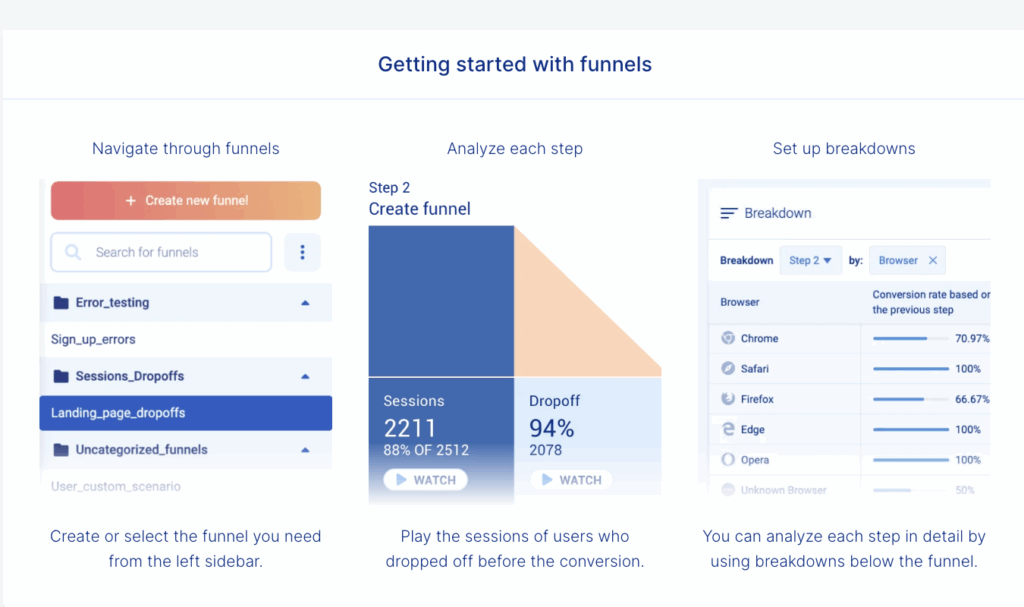
Smartlook will show you how many users complete each step, where they drop off, and how long it takes them to move through the funnel. You can then review recordings and spot where users choose a different path than the one you intended for them to take—in which case, you might have some UI-flow tweaking to do.
Like Mouseflow, Smartlook ties its funnelling into its other tools, like session replay. So, you can jump straight from a funky spot in a funnel to the session recordings that show you what, exactly, caused the issue.
4. Segmentation and Depth of Analysis
Mouseflow
Segmentation is a big part of analytics—without it, you’d miss out on spotting differences in how various groups of users behave. To that end, I studied the level of segmentation capabilities that both Mouseflow and Smartlook offer.
Mouseflow offers broad, session-level segmentation for its session recordings, funnels, heatmaps, and form analytics. You can segment and filter your data using:
- Page URLs
- Device type (tablet, mobile, desktop)
- Browser and operating system (Mac vs. Windows, for example)
- Geographic location
- Traffic source (Google vs. Facebook vs. ChatGPT)
- Date and time ranges (specific hours or times of day)
This data helps you form segments of customers with similar characteristics. From there, you can study how specific segments react to things like price changes, shipping charges, and website updates, for example.
Remember: because Mouseflow, as a whole, is focused on session-level analytics, each visit is treated independently. There’s no way to segment users based on their behavior over multiple sessions—just one session at a time.
If you want straightforward segmenting and filtering to quickly solve conversion problems within individual visits, you’ll be fine.
But if you want more, there’s Smartlook.
Smartlook
Need deeper segmentation and analysis capabilities? Smartlook’s got you. Unlike Mouseflow, Smartlook focuses on tying data to more than just sessions (single visits to your site).
Instead, it tracks data across users, events (specific actions like using a product feature or clicking a CTA button), and properties (details like the button name, plan type, product ID, device type, and so on).
The above definition alone shows you how much deeper Smartlook goes. And you can segment users across:
- Session recordings
- Funnels
- Events, and event properties
- Users and user timelines
- Heatmaps
Plus, you can build filters and segments with:
- Tracked events (actions like adding a product to a cart or signing up for an email list)
- Custom event properties that your team defines
- User attributes like subscription plan tier or user/account ID
- Device type, platform, operating system, and browser (Safari vs Chrome, for instance)
- Location
- Traffic source
- Time constraints (like actions carried out within a specific session, or before or after another event)
Smartlook allows you to use persistent user identification, which means you can track the same user across more than one session and platform (like both your website and your mobile app).
This alone gives Smartlook a lot more context and information than you’d get with Mouseflow. But at the same time, you have a higher responsibility to protect user privacy by keeping users anonymous, masking sensitive fields, and avoiding collecting personal data.
As long as you’re ready to handle the deeper logistics of this, you’ll appreciate Smartlook’s more in-depth segmenting.
5. Integrations
Mouseflow
As a website analytics tool, Mouseflow offers integrations focused on supporting web analytics and marketing workflows. Its integrations focus on making session replay and behavioral analytics accessible from popular ecommerce and content management system (CMS) tools.
Officially, Mouseflow supports the following integrations:
- Google Analytics
- Google Tag Manager
- WordPress
- Shopify
- Webflow
- Wix
- Squarespace
- Hubspot
- AB Tasty
…among others. It also integrates with Zapier, giving you access to thousands more tools.
In short, Mouseflow’s integrations focus on allowing quick setup and compatibility with major website platforms (Wix, Squarespace).
Smartlook
Smartlook’s integrations are geared toward supporting various product analytics, data warehousing, and engineering tools, along with typical marketing tools. Depending on your plan level, you’ll get access to tools like:
- Google Analytics
- Google Tag Manager
- Segment
- Mixpanel
- Amplitude
- Firebase
- Slack
…and more. Like Mouseflow, Smartlook offers a Zapier connection for access to many, many more options. With these integrations, you can connect user, event, and session data with other platforms to study them in different ways or alongside other datasets.
In other words, Smartlook is built to pass data into other analytics tools you’re probably already using.
Pricing Breakdown: Which Has the Best Value?
| Mouseflow | Smartlook |
|---|---|
| Free plan with session recordings, heatmaps, funnels, and form analytics (with usage limits). | Free plan with session recordings, heatmaps, and limited funnels (with strict usage caps). |
| Paid plans start at a listed monthly price and scale primarily by recorded sessions. | Paid plans start at a listed monthly price and scale by sessions, events, and data usage. |
| Core features are included on paid plans, with higher tiers mainly increasing limits. | Features and limits vary by plan, with advanced analytics and longer data retention on higher tiers. |
| Pricing is shown publicly with clear tiers and limits on the pricing page. | Pricing is shown publicly, but limits depend on multiple usage factors. |
| Best suited for teams that want reliable website analytics with predictable costs. | Best suited for teams that need user- and event-based analytics and accept usage-based costs. |
Mouseflow offers better value overall for website-focused teams, especially if you just want a straightforward tool to record individual sessions, create heatmaps, map funnels, and perform analytics on form fields. Because it’s less of a deep tool, Mouseflow is easier to get up and running, too. Check out our list of Mouseflow alternatives for more options similar to this one.
Smartlook is a better fit for teams that need deep, user-level analysis across multiple website or app sessions over time. Its event- and user-based approach offers you more context than Mouseflow’s single-session analysis. But it also means you have to do more setup—and take more responsibility for your users’ privacy.
Final Verdict: Is Mouseflow or Smartlook Right for You?
For users with both websites and apps to manage, Smartlook is going to be a better tool simply because it includes analytics for both. Or, explore our list of Smartlook alternatives for more ideas.
If you don’t currently have a mobile app and are a completely website-based brand, Mouseflow is the obvious choice. With a decently generous free plan and a low-cost beginner plan that starts at $25 a month, it’s a solid option.
If you want even more out of your web analytics tool—like A/B testing, AI summaries, unlimited surveys, and a generous set of free-forever features—try Crazy Egg instead.
See how Mouseflow and Crazy Egg stack up against each other.